



Most search tools aren’t built to answer a question. They return multiple files and finding the right answer means manually searching through those pages. This wastes your team’s time that could otherwise be utilized more productively.
Many teams try to fix this by connecting a general generative AI tool to their knowledge base. But these tools often lack context about your content. They can’t tell which article is approved, which version is current, or how your knowledge is structured. So the answers they generate are hard to trust.
In this article, we’ll discuss how knowledge base search works, why most search tools fail, and what you can do to improve search results.
How Does Knowledge Base Search Work?
Knowledge base search is the system that takes a person’s question and returns the most relevant answer from a stored collection of content. The best search tools deliver a direct answer instead of a list of documents to scan.
Every search follows the same four steps: the system indexes content, interprets the query, ranks the matching results, and presents an answer.
Indexing
Before anyone searches, the system scans every article and attached file. It then builds an index, a master list of the terms and concepts each piece of content contains. Think of it like the index at the back of a book. When someone searches, the system checks this list instead of reading every article from scratch.
If content isn’t in the index, it can’t show up in results. For example, if your refund policy lives in a PDF on a shared drive, and your search tool only indexes articles created inside the knowledge base, that policy is invisible to search. Agents will never find it, no matter how they phrase the query.
Query Processing
When someone types a query, the system cleans it up before searching. Say an agent types “How do I cancel a Customer’s subscripton?” The system lowercases the text, fixes the typo in “subscription,” and strips out filler words like “how,” “do,” and “a.” It also reduces words to their root form, so “cancel,” “cancels,” and “cancelling” all match the same content.
Some systems go further and expand the query with synonyms. A search for “cancel” also matches articles that say “terminate” or “end service.” Semantic systems take one more step: they convert the query into a numerical representation of its meaning. This lets the system match the intent of a question, not just the exact words in it.
Search Retrieval
Keyword search compares the words in a query against the words in the index. Searching “refund policy” returns articles containing those terms, ordered by signals such as how often the words appear and whether they show up in the title.
This method is fast and predictable, and it works well when users know the official terminology. Some tools only rely on exact keyword use to deliver accurate results.
Some tools also support semantic search that uses natural language processing to interpret the intent behind a query. It maps words and phrases to concepts, so “money back,” “refund,” and “reimbursement” resolve to the same topic.
Why Does Knowledge Base Search Fail?
Knowledge base search results depend on the quality of indexing and retrieval.
Here are some causes of search failures teams face:
Unstructured Content
Search engines need well-organized content to return accurate results. When articles lack clear titles, consistent formatting, or logical categories, the search index struggles to match queries to the right answers.
This happens when teams build their knowledge base without content standards. One author writes a full process guide. Another pastes a raw email thread and calls it an article. A third creates a duplicate entry with a slightly different title. This results in a cluttered index where the same topic appears in multiple formats.
Outdated or Duplicate Content
Old content actively competes with current content in search results. When a knowledge base has three versions of the same refund policy, the search engine doesn’t know which one to rank first.
Teams lose trust in search results when they land on expired information. Over time, they stop searching and start asking coworkers or supervisors instead. That defeats the purpose of having a knowledge base.
Poor Search Functionality
Wiki-style tools and general-purpose platforms return irrelevant results, bury the right article, or misinterpret the query. Users lose trust in the search function and stop using it. They either default to messaging a coworker or escalating to a manager because that feels faster.
No Control Over Who Publishes What
When anyone on the team can create, edit, or publish content without review, the knowledge base fills with conflicting information. Two departments publish different answers to the same question. There is no quality gate between a draft and a live article. Content goes live without a second set of eyes, and search results reflect that chaos.
Siloed Knowledge Across Departments
Many organizations store knowledge in separate tools per department, so no single search can span all of them. Teams who need a cross-departmental answer, like a billing policy that involves both finance and compliance, waste time searching multiple tools.
3 Strategies to Improve Your Knowledge Base Search
Most search problems trace back to how content is structured, how search is configured, or how the tool itself handles queries. These are three strategies you can adopt:
Design Your Content Architecture
Search quality depends on how you create your knowledge base. A strong content architecture should have standardized templates, clear naming conventions, and logical category structures. Every article should have a defined scope, a descriptive title, and metadata tags that reflect what the content covers.
When content follows a consistent structure, search engines can index it accurately and return relevant results.
This also means separating content types. A step-by-step troubleshooting guide should not live in the same format as a policy document or a quick-reference FAQ. Each content type serves a different need, and structuring them differently helps search distinguish between them.
Measure Your Search Performance
Identify what knowledge articles your teams search the most in a timeframe (daily, weekly, or monthly). Look for which queries return no results, which topics get searched repeatedly, and which articles are opened but don’t resolve the question.
These patterns reveal whether the problem is missing content, poor article titles, or terminology mismatches between what users type and what articles contain.
Create a Feedback Loop
Build a feedback loop where teams can vote whether the search result was helpful or not. That could be a thumbs-up/thumbs-down rating on an article, a comment field for suggestions, or an automated alert when an article reaches its review date.
This helps you align your content with real-world use cases. It also helps content owners prioritize updates based on what users encounter most.
How to Use Knowledge Base Search Effectively
Search results depend on how you or your team use the tool as much as on the content behind it. These practices help your teams find the right answers:
Onboard and Train Teams on Search
Many new hires use the knowledge base search the way they use Google. They type a few words, scan the top results, and open the first one that looks close. That habit skips the checks that show whether an answer is right and approved.
Teach them how your knowledge base search works during onboarding. Show them how to phrase a query, apply filters, and find the review date on an article. Use real examples from your own content, such as a refund policy or a leave request.
Use Clear Terms and Full Questions
Type the topic and the task, such as “international refund policy.” A single word like “refund” returns too many results to scan.
If a keyword misses, try a synonym or the formal name. If the tool supports AI or semantic search, type the full question, such as “How do I process a refund for a damaged item?”
Use Filters to Narrow Results
Filter by category, department, content type, or date to cut a long list down to what applies to your role. A support agent can filter to customer-facing policies. An HR specialist can filter to leave and benefit content.
Test Search Results With Real Queries
Test search with the queries your team types. Pull 10 to 20 queries from support tickets or chat channels, including typos and informal phrasing.
Check whether the right, current article ranks first. Run the test again after major content updates.
These habits improve results, but they work best when your knowledge base software helps you keep your content current, structured, and approved.
How livepro Delivers Accurate Knowledge Base Search for Contact Centers & Enterprise Teams
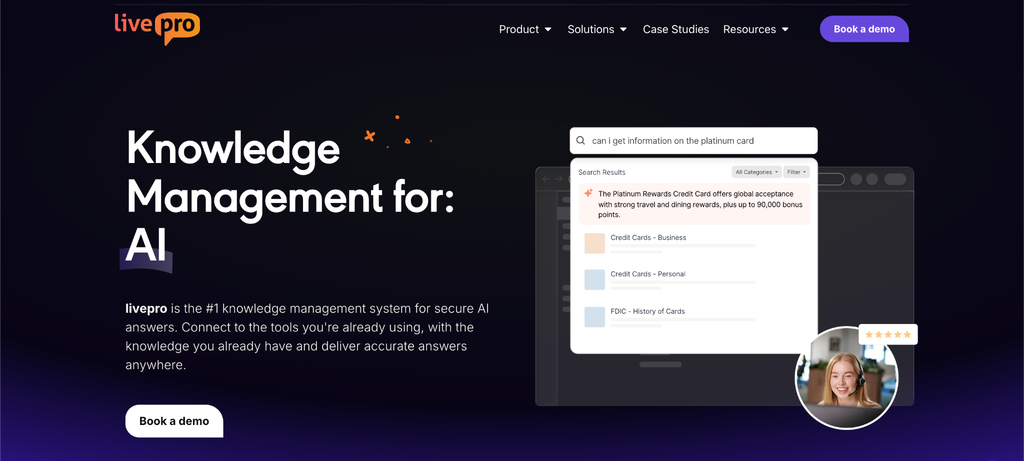
Most of the search problems above share one root cause. The search tool has no control over the content it searches. It can’t tell which article is approved, which version is current, or which file holds the right policy. So it returns a list of documents and leaves your team to figure out the rest.
livepro is an AI-powered knowledge management system built for contact centers and enterprises. It brings your knowledge base and its search into one platform. Content is structured, reviewed, and approved before it goes live. Search then reads the intent behind each query and returns one verified answer, not a list of files to scan.
livepro serves highly regulated industries, including banking, healthcare, local government, and BPOs, where a wrong answer can mean a compliance breach.
Here’s how livepro’s knowledge base search delivers accurate, verified answers:
Hybrid Search That Understands Intent
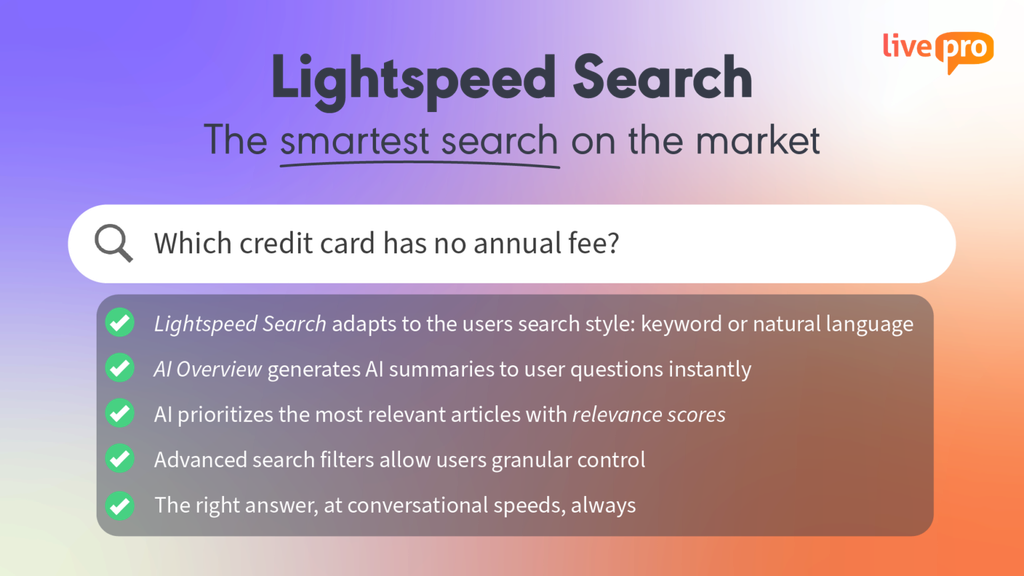
livepro’s Lightspeed search combines AI, keyword matching, and semantic understanding to surface the right answers. It can understand typos, mismatched terms, or complex queries, and return results in real-time. For example, if an agent mistypes “billing dispute”, livepro will still deliver the right information within seconds.
The search engine also generates relevance scores for every result. Agents can see at a glance which articles are the closest match to their query, which reduces time spent scanning through a list of results.
livepro also uses retrieval-augmented generation (RAG) to pull information directly from your approved knowledge base. Every answer is grounded in governed content. This keeps responses accurate, compliant, and traceable to the source article.
AI Overviews for Quick Summaries
Some complex queries don’t have a single answer. Teams need to scroll through multiple articles, which wastes valuable time.
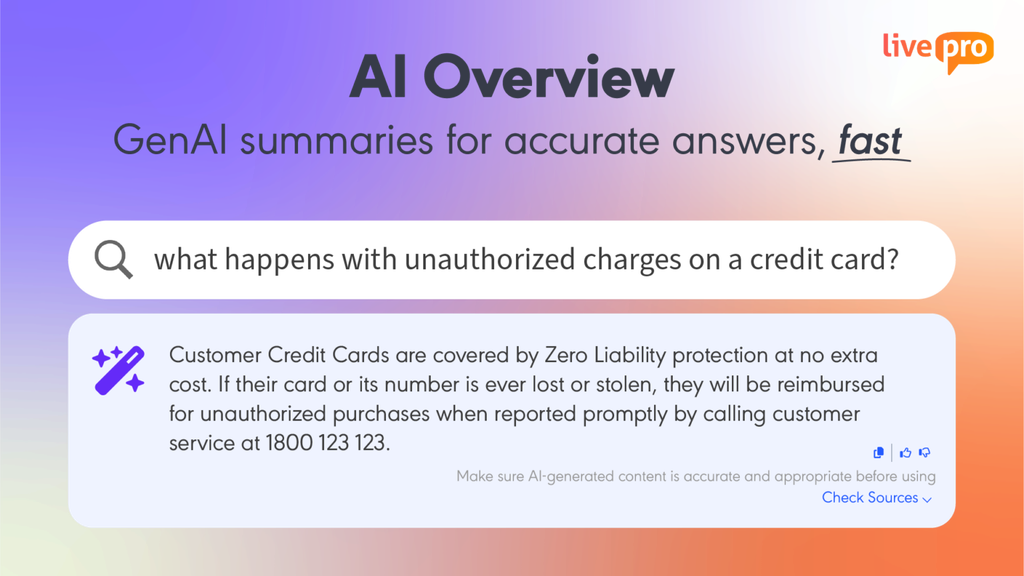
livepro’s AI Overview generates an AI-powered summary on top of every search result. It pulls information from relevant articles across the knowledge base and delivers contextual answers.
Every AI-generated summary is grounded in the knowledge base’s approved content. The answer is cited back to its source article, so agents can verify where the information came from.
For example, if your call center agent gets a call about updating a beneficiary on an insurance policy, they can type the question into livepro’s search bar. AI Overview pulls from the approved policy document and returns a short summary with the required steps, documents needed, and processing timeline.
Teams can also rate the search query with a quick thumbs up/down for feedback. The search self-learns based on the user’s interaction and response to deliver better future results.
LightspeedAI to Structure Content Across Departments
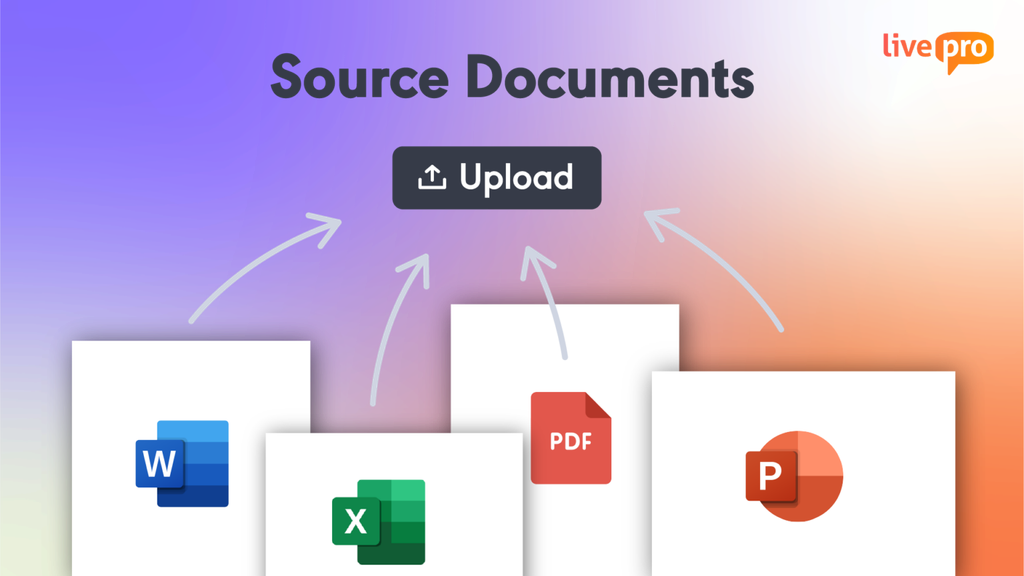
Many teams don’t have the time to rewrite every PDF, Word document, or spreadsheet into a structured article before uploading it. That content stays trapped in files across departments, invisible to search.
livepro’s LightspeedAI lets you import source documents and structure them for search. Teams can upload content in its original format. It automatically maps and organizes imported content into consistent, easy-to-navigate formats while preserving the integrity of the original document.
During the import process, the AI simplifies jargon, breaks long sentences into clear instructions, and extracts key points from lengthy policy documents. For example, a 40-page compliance manual doesn’t stay as a 40-page wall of text. It becomes a set of structured, scannable articles that teams can find and read through in seconds.
Once formatted, the articles are sent for review before they’re published. No unverified content reaches the search results, so teams can search confidently.
Approval Workflows and Version Control to Keep Search Accurate
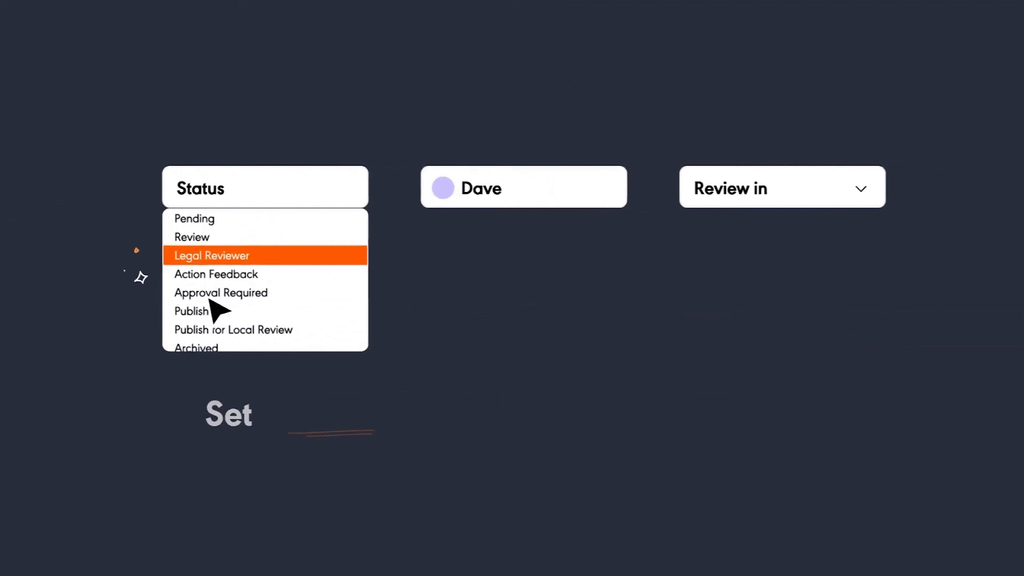
Teams need full control over what content is uploaded, who approves it, and how often it’s reviewed.
livepro helps you keep track of your content, from uploading to expiry:
- Approval workflows: Route every article through a defined author, review, and approval cycle before it goes live.
- Role-based permissions: Control who can create, edit, approve, and view content. Teams see only the knowledge relevant to their role or department.
- Version control: Track every edit with a full version history. Compare versions and restore previous ones if needed.
- Automated review dates: Assign review cycles to articles so content is checked on schedule. Scheduled publication and expiry: Set content to go live or expire on a specific date. Policy changes, plan years, and legislative updates flip over automatically.
- Full audit trails: Log every action, who changed what and when. Give compliance teams a defensible record for regulators and internal audits.
- User feedback: Rate articles and flag outdated or unclear content directly from the search results.
Knowledge Analytics to Spot Search Gaps
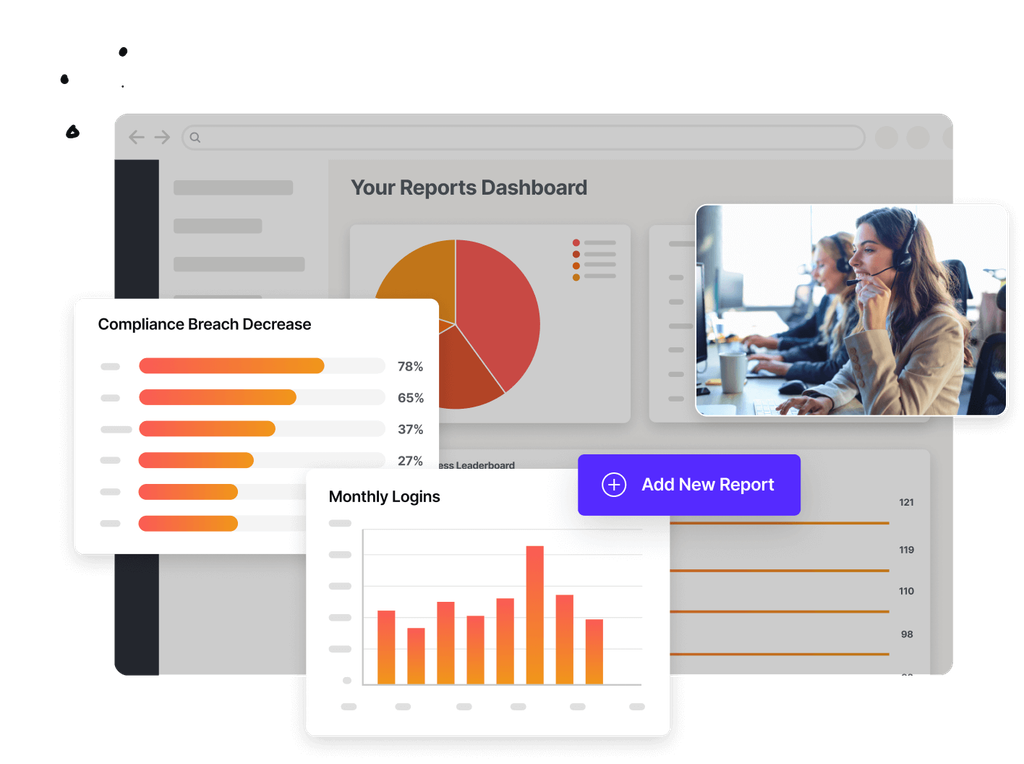
livepro helps you track what agents search for, which results they click, and which queries return no results. This data shows where the gaps are. It could be missing content, poorly titled articles, or terminology mismatches between how agents ask questions and how articles are written.
You can monitor trending searches to spot emerging topics. The platform also surfaces zero-result queries. Every failed search becomes a signal that something needs attention.
For example, if most agents search “early termination fee” in one week but the article is titled “Contract Cancellation Charges,” analytics flag that mismatch. Content owners can update the title, or add a synonym, so the article surfaces on the next search.
WebAnswers for Customer-Facing Knowledge Base Search
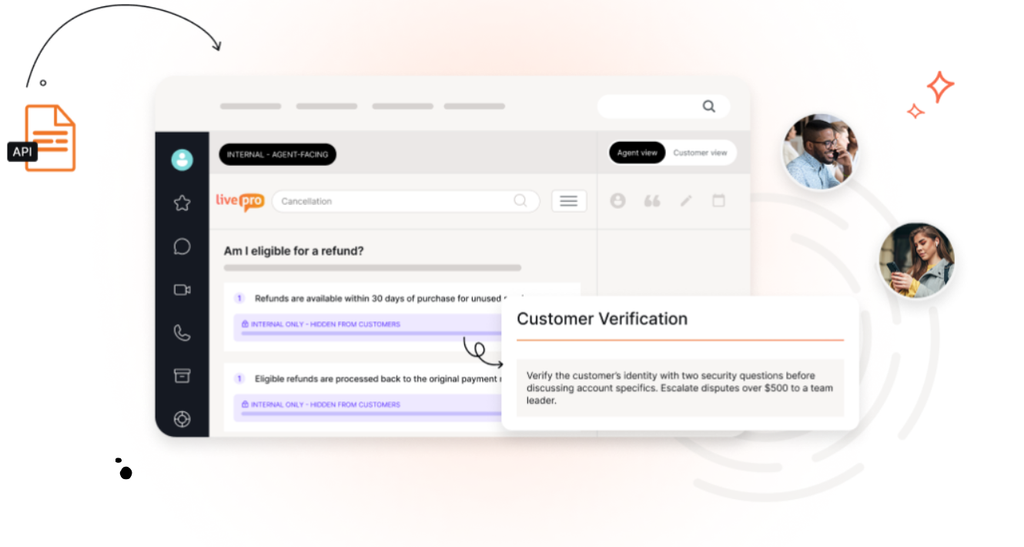
Most knowledge bases serve internal teams only. Teams need to create a separate FAQ page or a help center that often has limited search and outdated content.
livepro’s WebAnswers allows you to connect your knowledge base to a website, app, or portal through a simple API. Customers can search in everyday language, and the platform pulls answers from the same governed knowledge base teams use.
Content is authored once and managed centrally. When a knowledge team updates an article, the change applies across every channel, including the customer-facing site. There’s no duplicate content to maintain and no risk of serving outdated answers to customers.
For example, a telecom company publishes its plan change and cancellation policies through WebAnswers. Customers search the website before calling. The team sees fewer calls about routine policy questions, and agents spend more time on complex issues that need human judgment.
livepro Integrations
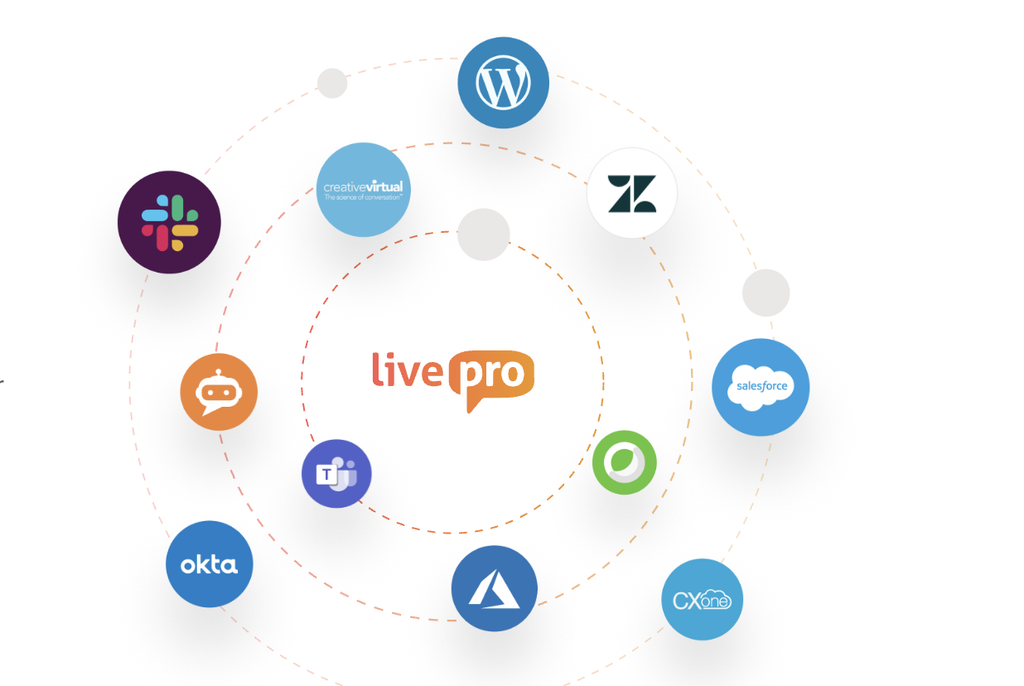
Search only works if teams can access it where they already work. livepro integrates with CRMs, ticketing systems, chat platforms, and telephony tools, so data flows through the same system.
The platform offers integrations with:
- Genesys Cloud
- Salesforce
- Zendesk
- NICE
- Microsoft Teams
- Microsoft Dynamics
- Slack
- WordPress
You can also connect custom apps, tools, or sites with livepro using the open API.
Give Your Team One Verified Answer in Seconds
Knowledge base search only works if the content is up-to-date. Unstructured, outdated, or unapproved content gives even a smart search engine nothing reliable to return.
livepro builds the knowledge base and its search together. Content is structured on import and approved before it goes live. Hybrid search then reads the intent behind each query, so every answer comes from verified content.
Agents get one clear answer in seconds, with no tool switching or scrolling through a list of articles. Teams spend less time on repeat questions and onboard new hires faster.
Book a demo to see how livepro helps your team find verified answers and keeps every response compliant.
Knowledge Base Search FAQs
What is a searchable knowledge base?
A searchable knowledge base is a central library of articles, policies, and guides that teams can query in plain language. Instead of browsing folders, users type a question and get the most relevant answer. The best ones use hybrid search to understand intent and return one verified answer, not a list of files.
Can generative AI fix poor search in a knowledge base?
Generative AI can summarize results into one answer, but it answers from the content it finds. If that content is outdated or duplicated, the answer repeats the problem. Approval workflows and review dates keep content current.
How to search knowledge base articles to find answers faster?
Start with specific keywords that describe the topic and the task, such as “refund policy international orders.” Use filters to narrow results by category or date, and try synonyms if nothing matches. Check the last updated date on the article before you act on the answer.
What features should a knowledge base search engine have?
Look for a platform that offers hybrid search, approval workflows, role-based permissions, search analytics, and integrations with the tools your team uses. Test shortlisted tools with real queries from your team, including typos and informal phrasing.